Payments
How to what the Payments page shows
The main Payments table lists transaction records from bookings and POS sales. Operators can search, filter, export, choose which columns are visible, and open a payment detail panel by clicking any row. The page is designed for both day-to-day front-desk work and finance review.
The main Payments table lists transaction records from bookings and POS sales. Operators can search, filter, export, choose which columns are visible, and open a payment detail panel by clicking any row. The page is designed for both day-to-day front-desk work and finance review.
What the Payments page shows
The main Payments table lists transaction records from bookings and POS sales. Operators can search, filter, export, choose which columns are visible, and open a payment detail panel by clicking any row. The page is designed for both day-to-day front-desk work and finance review.
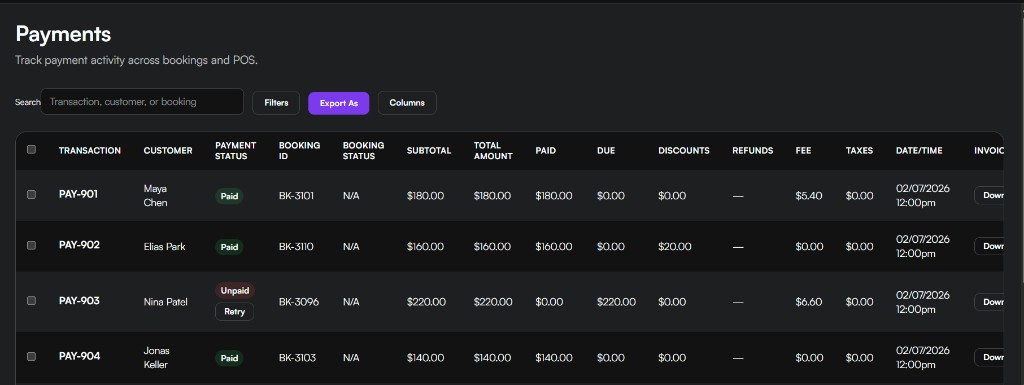
- Search supports transaction ID, customer name, and booking ID.
- Filters let staff narrow by date range, payment status, and location.
- The column picker lets each team focus on the fields they use most. Source is available and unchecked by default so you can see whether a payment came from the booking site, a staff booking, or a connected OTA.
- Export supports CSV directly, with XML, Excel, and PDF currently falling back to CSV export.
Tips
- Train staff to open the payment detail panel before answering refund or invoice questions so they can see the full transaction context.
- Use the search and filter controls every morning to review unpaid transactions and recent refunds.
- Processing fees from Stripe or Square are distinct from any platform fees shown in the booking breakdown.