Payments
How to do a refund
To refund a payment, open the transaction in Payments, scroll to the Refund section, enter the amount you want to return, choose the refund method, select the reason, and then use Issue refund. The platform validates that the amount is greater than zero and does not exceed the remaining refundable amount.
To refund a payment, open the transaction in Payments, scroll to the Refund section, enter the amount you want to return, choose the refund method, select the reason, and then use Issue refund. The platform validates that the amount is greater than zero and does not exceed the remaining refundable amount.
How to do a refund
To refund a payment, open the transaction in Payments, scroll to the Refund section, enter the amount you want to return, choose the refund method, select the reason, and then use Issue refund. The platform validates that the amount is greater than zero and does not exceed the remaining refundable amount.
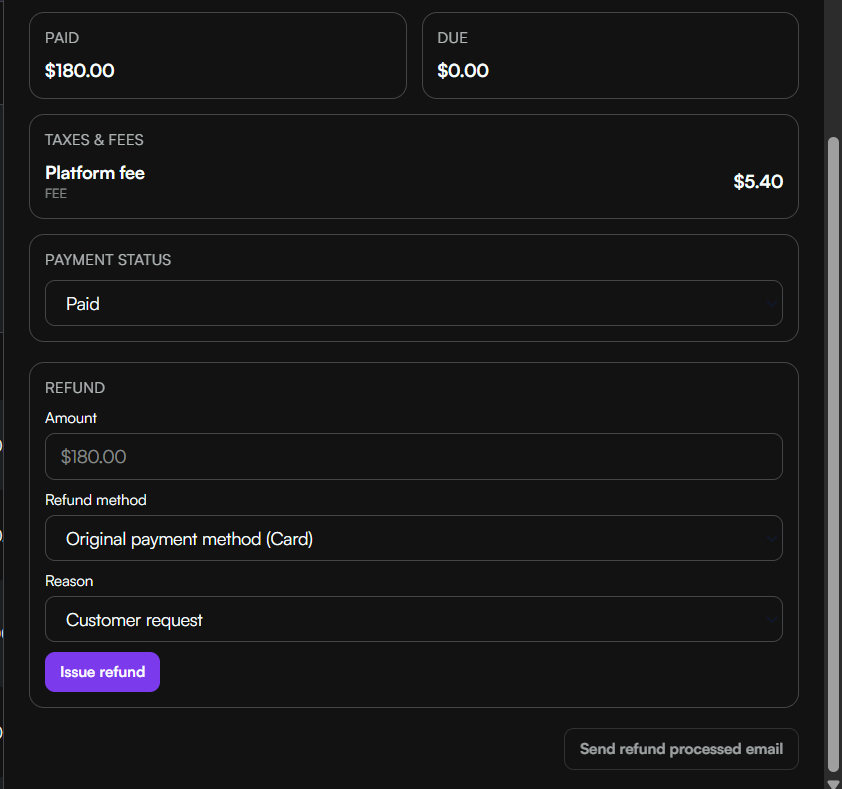
- Leave the amount blank if the operator wants to use the visible payment amount as the starting point, then confirm the exact number before issuing.
- Choose Original payment method when the money should go back through the original card or processor path.
- Choose Cash when the operation is intentionally refunding outside the original digital method.
- Pick a reason such as Customer request, Service issue, Overcharge, or Duplicate so the refund history stays understandable.
- After a successful refund, the transaction updates its refunded total and remaining refundable amount.
Tips
- Train staff to open the payment detail panel before answering refund or invoice questions so they can see the full transaction context.
- Use the search and filter controls every morning to review unpaid transactions and recent refunds.
- Processing fees from Stripe or Square are distinct from any platform fees shown in the booking breakdown.